Friday, April 5, 2013

Running two apps side by side
Any app can be pinned to the left or right-hand side of the screen. For example, open the People app and then press the Windows Key + . (period) to move that app to the right-hand side of the screen, pressing the same keys again will move it to the left-hand side, and pressing the same keys again will make it full screen. While an app is pinned, any other app or program can be opened and loaded into the available space on the screen. For example, in the below picture, we've opened a browser window and have the People app running to monitor our social networks.
Running two apps side by side
Any app can be pinned to the left or right-hand side of the screen. For example, open the People app and then press the Windows Key + . (period) to move that app to the right-hand side of the screen, pressing the same keys again will move it to the left-hand side, and pressing the same keys again will make it full screen. While an app is pinned, any other app or program can be opened and loaded into the available space on the screen. For example, in the below picture, we've opened a browser window and have the People app running to monitor our social networks.


Any open app can also be pinned using your mouse by clicking at the top of the tile and dragging it to the left or right-hand side of the screen.
Bonus tip: The Desktop can also be pinned to the left or right-hand side of the screen.
Note: In order for snap to work properly your resolution must be at least 1,366 x 768.
Any open app can also be pinned using your mouse by clicking at the top of the tile and dragging it to the left or right-hand side of the screen.
Bonus tip: The Desktop can also be pinned to the left or right-hand side of the screen.
Note: In order for snap to work properly your resolution must be at least 1,366 x 768.
Thursday, April 4, 2013
Windows 8 keyboard shortcuts

Knowing at least some of the Windows 8 keyboard shortcuts will make your Windows 8 experience much more enjoyable. Try to memorize these top Windows 8 shortcut keys.
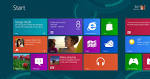
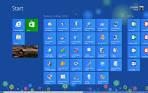

- Press the Windows key to open the Start screen or switch to the Desktop (if open).
- Press the Windows key + D will open the Windows Desktop.
- Press the Windows key + . to pin and unpin Windows apps on the side of the screen.
- Press the Windows key + X to open the power user menu, which gives you access to many of the features most power users would want (e.g. Device Manager and Command Prompt).
- Press the Windows key + C to open the Charms.
- Press the Windows key + I to open the Settings, which is the same Settings found in Charms.
- Press and hold the Windows key + Tab to show open apps.
- Press the Windows key + Print screen to create a screen shot, which is automatically saved into your My Pictures folder.


Wednesday, April 3, 2013
Increase the speed of your internet connection without a new modem
 |
|
As more and more people get quick connections to the internet, such as
cable or ADSL, it becomes apparent to the user of a simple dial-up modem
that the World Wide Web can quickly turn into the World Wide Wait. Here a
trick that can help speed up your current modem without shelling out the
big bucks.
There is a setting located in your windows registry called the Maximum Transfer Unit (MTU). This determines the size of the packets of data sent between your and your server. In Windows 95, this setting is has a value of 1,500 bytes when the actual size of internet packets is 1,000 bytes. This can sometimes slow things down. To remedy the situation, simply follow these steps: In the registry editor (Start > Run > regedit.exe), navigate to HKEY_LOCAL_MACHINE\System\CurrentControlSet\Services\Class\NetTrans.
In the NetTrans folder you
should find another folder named "000x" in which x represents a fourth
digit. Right-click on the "000x" folder and select New and StringValue.
Rename the item that appears in the panel on the right side to MaxMTU,
then double-click it to bring up the Edit String box and give it a velue
of 1002.
Remember to keep playing with the MaxMTU value until you feel that your internet connection has greatly sped up. Some people report huge speed gains using this tricks, while others hardly notice a difference. In any case, it's definetly worth a try.   |
S0ME hidden RUN comnd for
ur pc

Just go start,then click on Run then type any comand below
0) cmd - comand prompt
1) compmgmt.msc - for computer managent
2) devmgmt.msc - device manager
3) regedit - registry editor
4) msconfig - system configuratn utility . . .
5) compmgmt.msc - Computer management
6) devmgmt.msc - Device manager
7) diskmgmt.msc - Disk management
8) dfrg.msc - Disk defrag
9) eventvwr.msc - Event viewer
10) fsmgmt.msc - Shared folders
11) gpedit.msc - Group policies
12) lusrmgr.msc - Local users and groups
13) perfmon.msc - Performance monitor
14) rsop.msc - Resultant set of policies
15) secpol.msc - Local security settings
16) services.msc - Various Services
17) msinfo32 - System Information
18) sysedit - System Edit
19) win.ini - windows loading information(also system.ini)
20) winver _ Shows current version of windows
21) calc - calculator
Just go start,then click on Run then type any comand below
0) cmd - comand prompt
1) compmgmt.msc - for computer managent
2) devmgmt.msc - device manager
3) regedit - registry editor
4) msconfig - system configuratn utility . . .
5) compmgmt.msc - Computer management
6) devmgmt.msc - Device manager
7) diskmgmt.msc - Disk management
8) dfrg.msc - Disk defrag
9) eventvwr.msc - Event viewer
10) fsmgmt.msc - Shared folders
11) gpedit.msc - Group policies
12) lusrmgr.msc - Local users and groups
13) perfmon.msc - Performance monitor
14) rsop.msc - Resultant set of policies
15) secpol.msc - Local security settings
16) services.msc - Various Services
17) msinfo32 - System Information
18) sysedit - System Edit
19) win.ini - windows loading information(also system.ini)
20) winver _ Shows current version of windows
21) calc - calculator
Error Reporting in XP

If error reporting in XP is bugging you then turn it off.
When a system error occurs in XP, a little dialog box appears asking if you want to report the error to Microsoft. Click the message box to make it disappear. You don't have to report the error if you don't want to and on today's "Call for Help" Leo shows you how to turn off the feature if you find it distracting.
To disable error reporting, follow these directions:
Hidden Programs In Windows XP !
Programs :
1. Private Character Editor :
Used for editing fonts,etc.
** start>>Run
** Now, type eudcedit
2. Dr. Watson :
This an inbuilt windows repairing software !
** start>>Run
** Now, type drwtsn32
3. Media Player 5.1 :
Even if you upgrade your Media Player, you can still access your old player in case the new one fails !!!
** start>>Run
** Now, type mplay32
4. iExpress :
Used to create SetupsYou can create your own installers !
** start>>Run
Subscribe to:
Posts (Atom)


